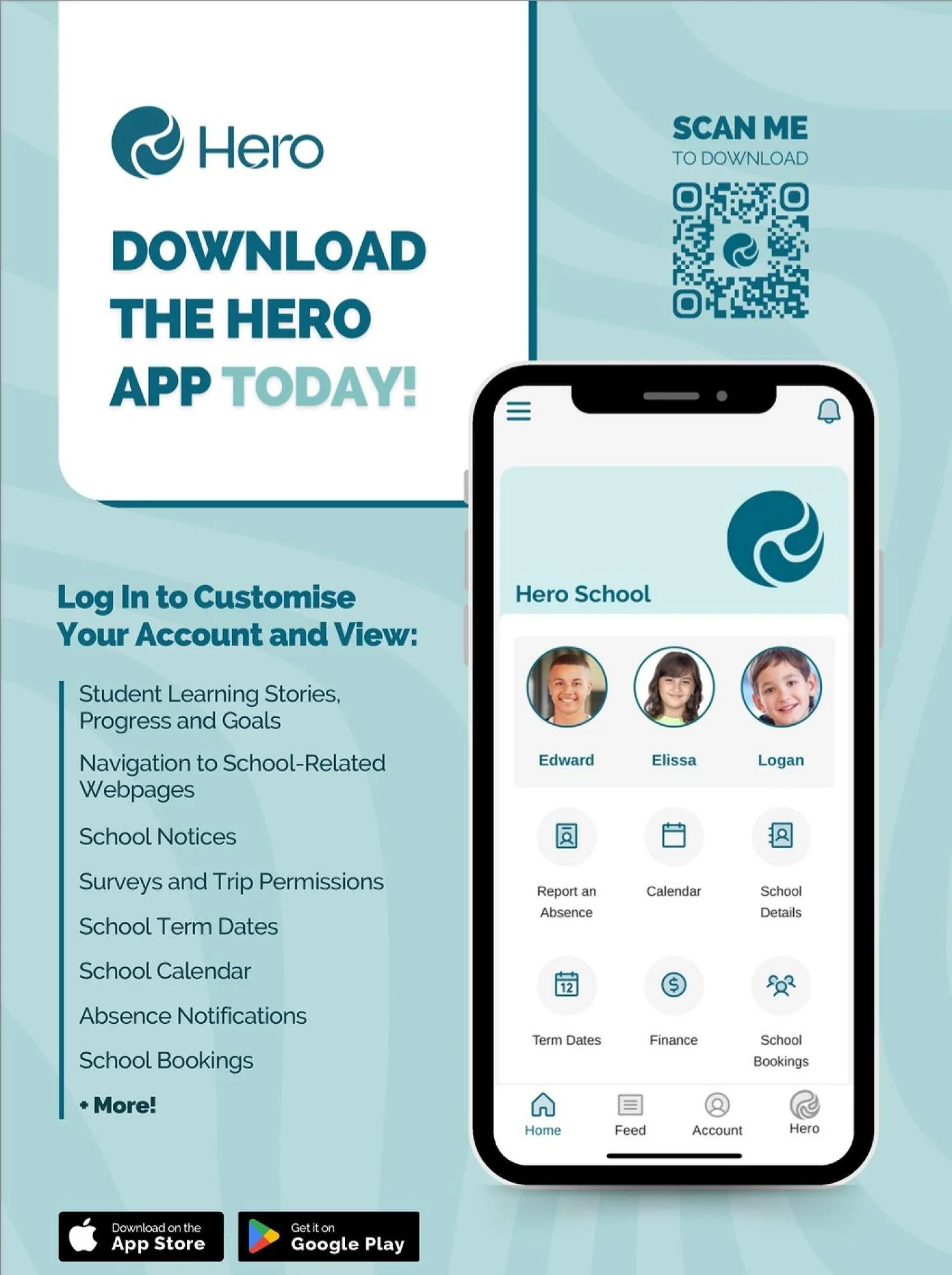
Hero
At EBIS we use Hero as our main way to communicate with parents/caregivers.
With Hero, you can:
read school notices sent to the class or groups your child is part of
respond to school notices such as surveys and trip permission requests
view school term dates
view a school calendar of events
notify the school if your child is absent or late
navigate to the school website, Kindo and Facebook page
select how you wish to receive notifications.
Hero Parent Guide
Click here to read the Hero Parent Guide article.
Hero is the student management system that organises our daily administration, attendance, classroom assessments, communication of notices, and reporting to parents. Hero provides a range of features that benefit us here at school, and you at home.
Some of these features won't be visible to whānau until next year, to allow time for us to upskill our kaimahi|staff, but we are excited to have you log on.
You need to be registered at the school office as the child's parent or caregiver to have access to their Hero account. If you are a grandparent or other family member, the child's parent must give written permission (email the office) to ask for you to be added to the child's account. You will need to supply an email address for this.
Here is a link to instructions for you to follow to log in to Hero now.
If you need help or have any questions, come into the school office or email: secretary@ebis.school.nz We are happy to help you get Hero set up on your device.
Events in Hero
Events in Hero
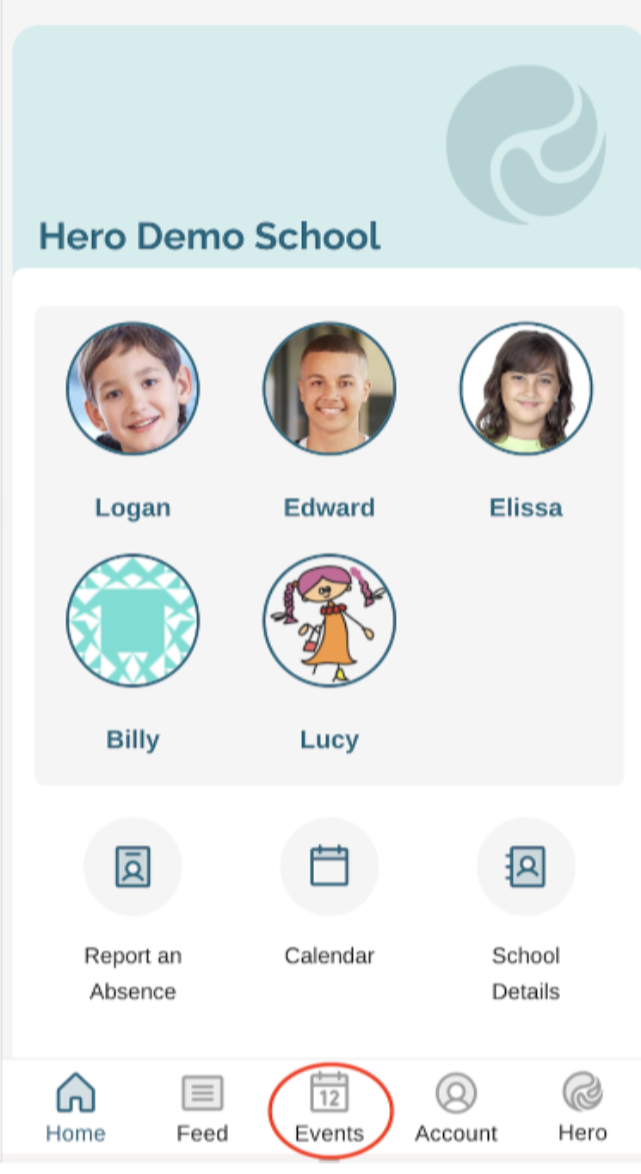
Go to Events in the Hero Caregiver App
This can be found either on the bottom toolbar of the mobile app e.g.
Events Calendar
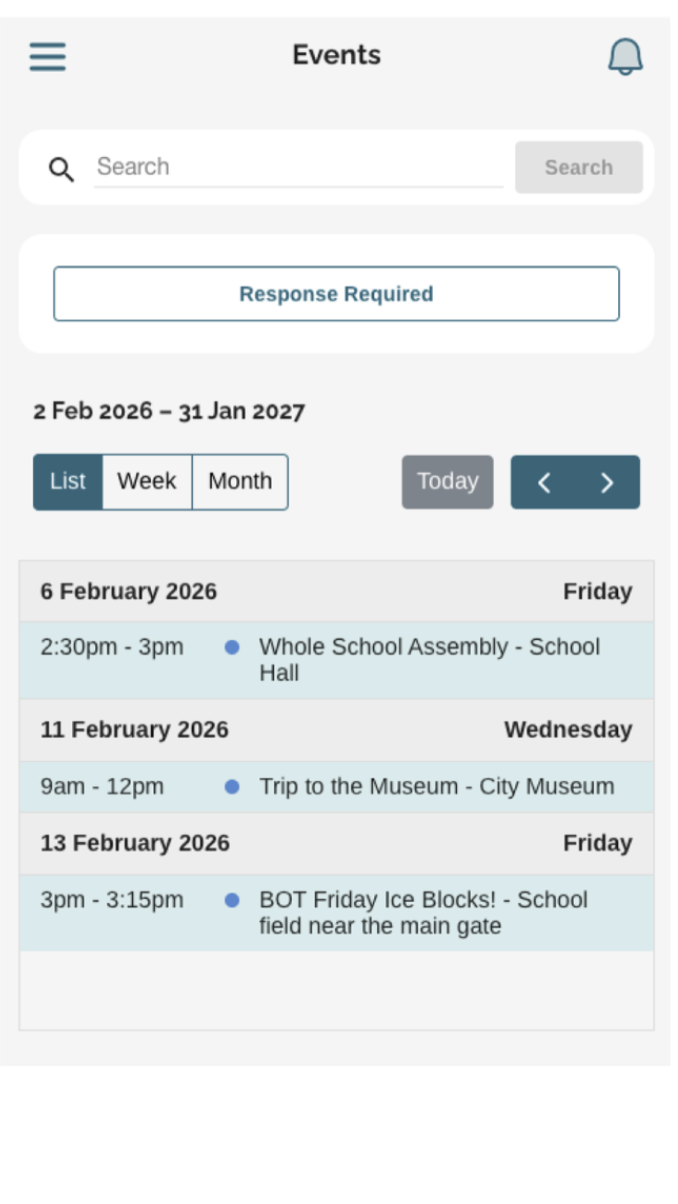
The school Events Calendar will be shown. The default is the month view, we recommend using the list view on a phone.
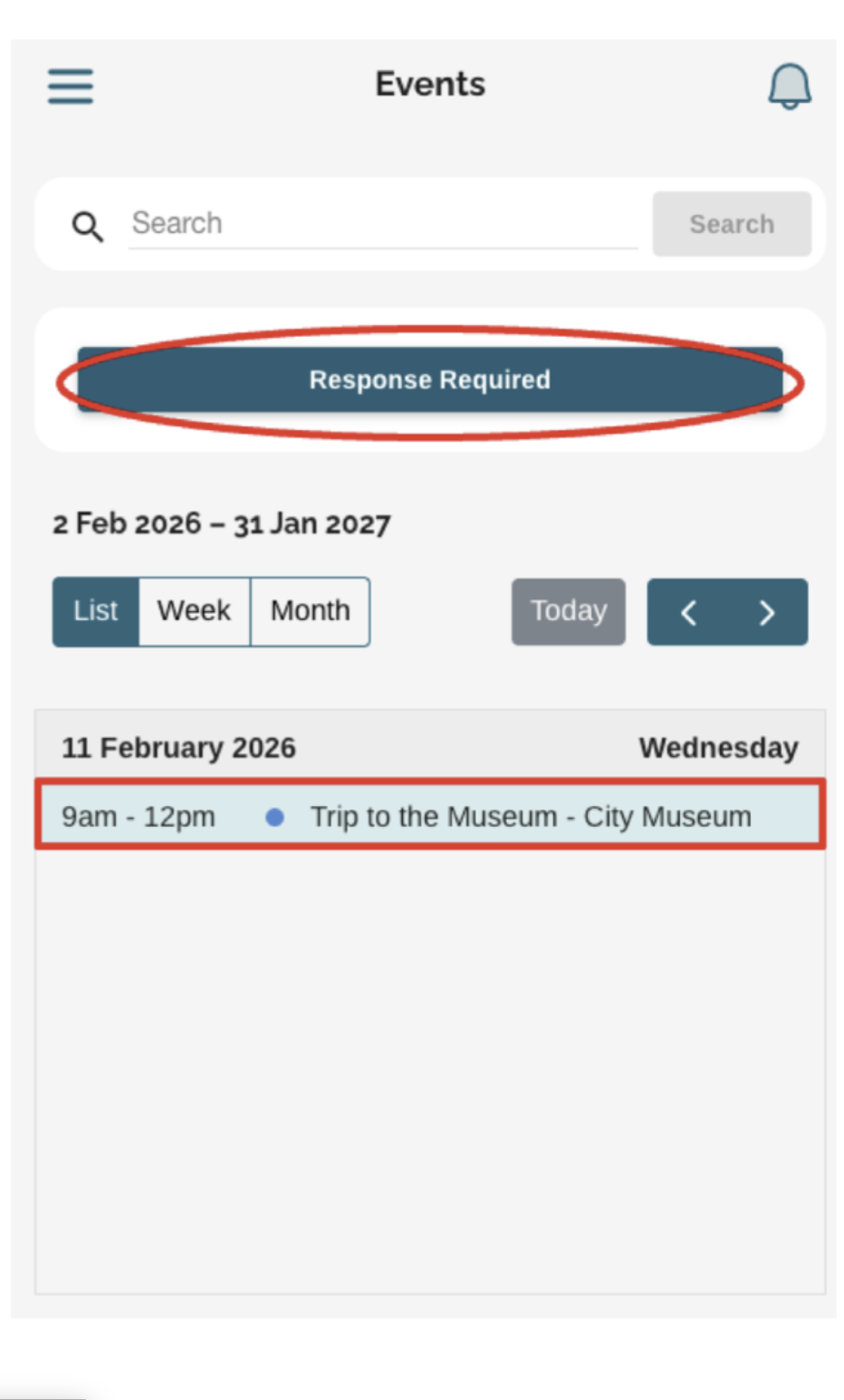
Response/Permissions
Caregivers can easily filter to see only events that still need a response by clicking Response Required. Click on an event to see more information and provide responses.
SUBMITTING A RESPONSE TO AN EVENT AS A CAREGIVER
Caregivers must submit a response for each of their children involved in the event.
Click on No Response next to the child
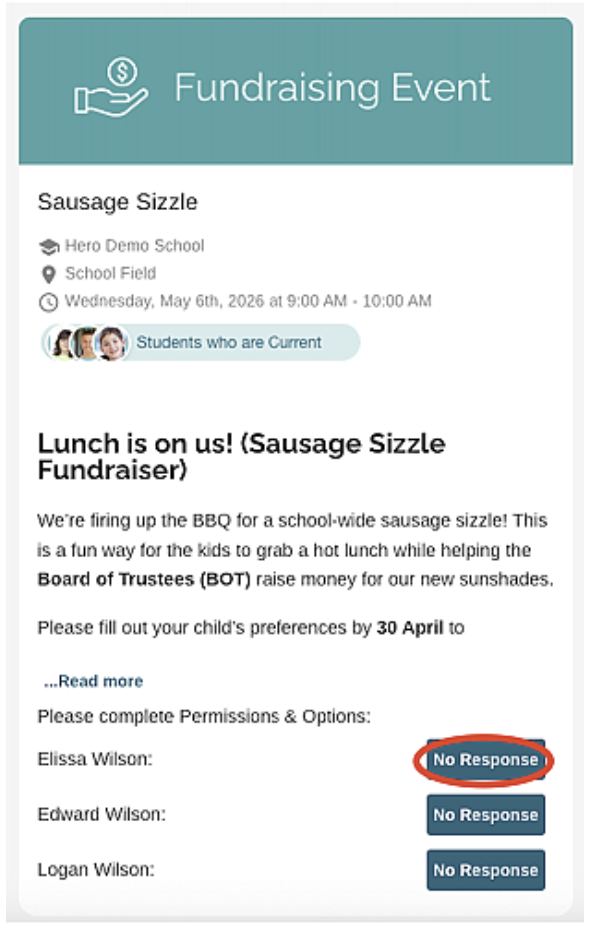
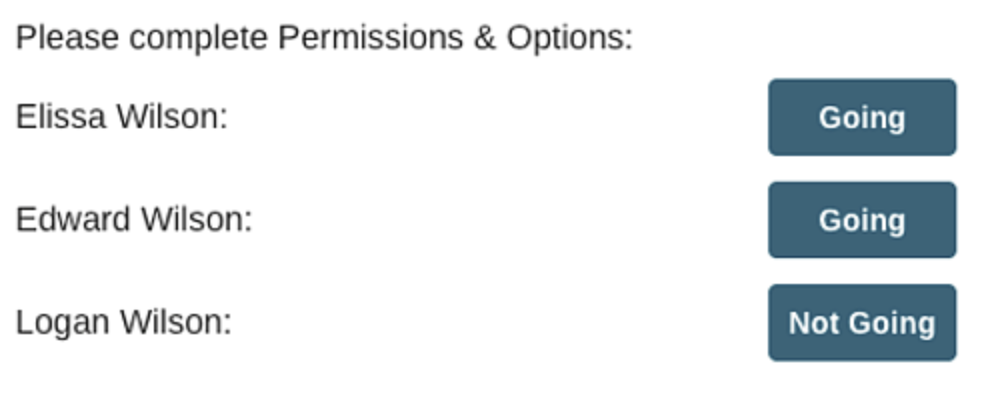
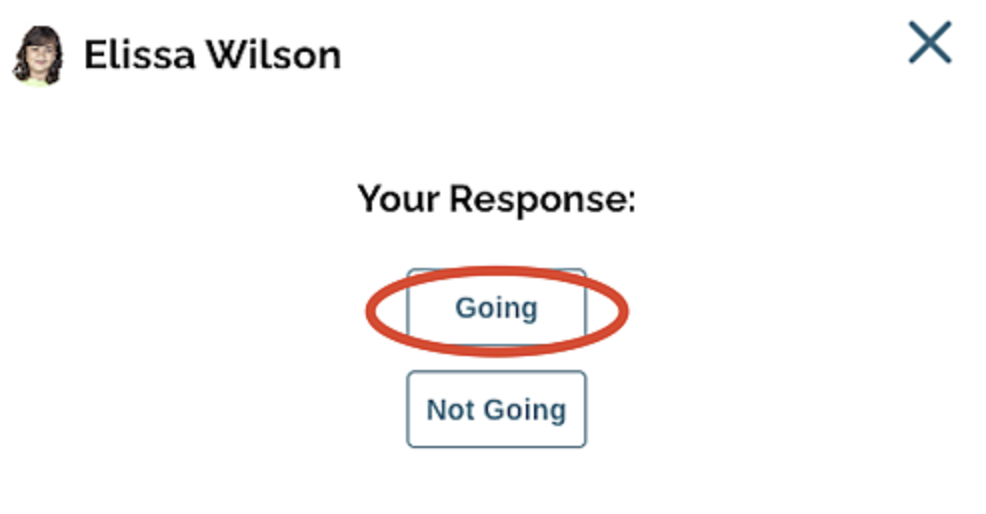
2. Select Going or Not Going as applicable for this child
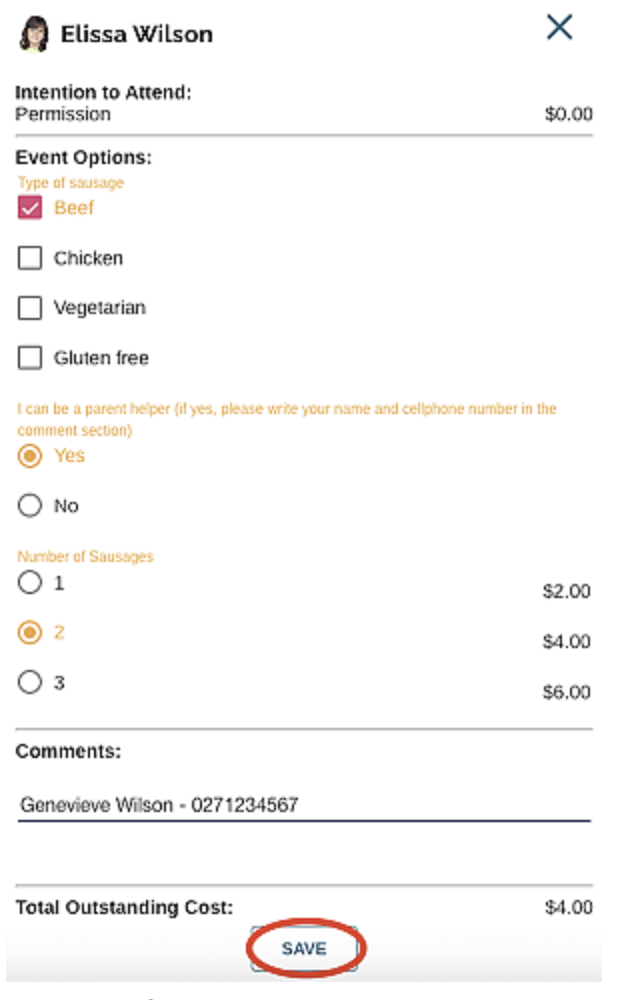
3. If Going is selected, fill out the permissions and options then click SAVE
4. Repeat for any other children until all have a response